Supported Operating Systems and Web BrowsersPlease refer to SSL VPN support | FortiGate / FortiOS 7.2.7 | Fortinet Document Library . | 警告 |
|---|
This feature is not available in Safari on macOS 15.x (Sequoia). Please use a different browser, such as Google Chrome or Mozilla Firefox. |
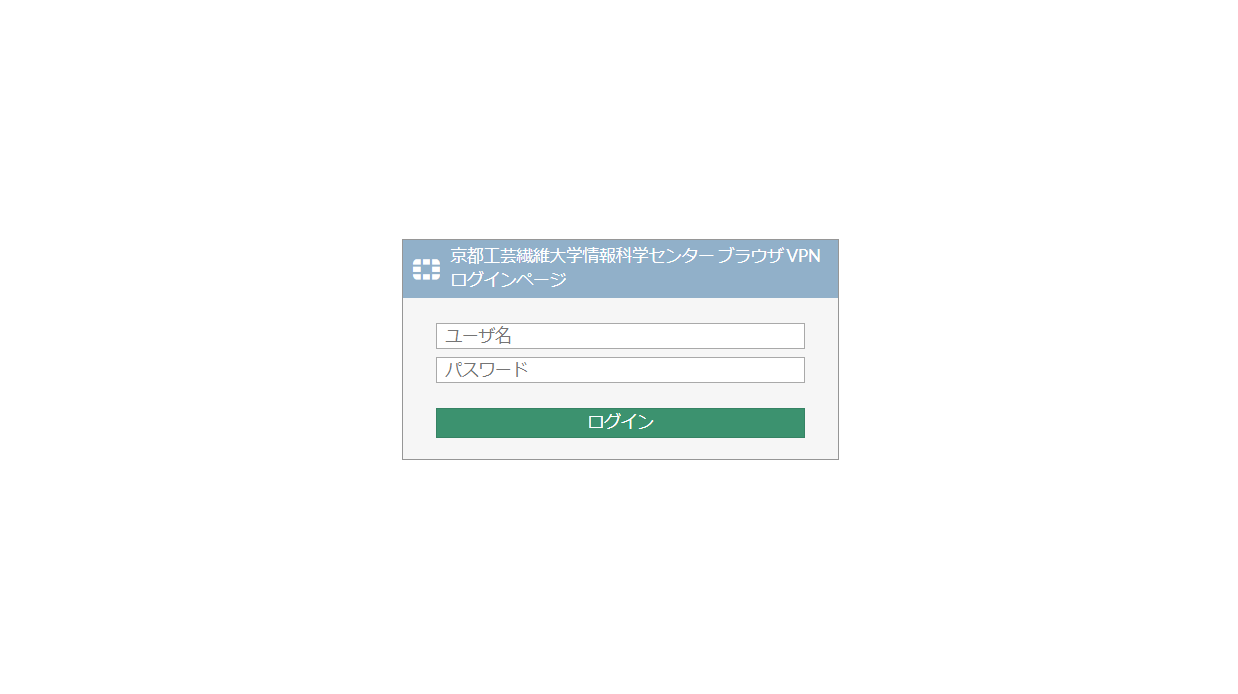
How to log in- Connect to https://vpns.cis.kit.ac.jp/ with a web browser.
You will see "Please login" page. Enter your login name and password for "Username" and "Password". Then, click "Login" button.
 Image Removed Image Removed Image Added Image Added
| 情報 |
|---|
If you click Single Sign-On without entering any information, you will be logged in through the KIT Federation IdP. |
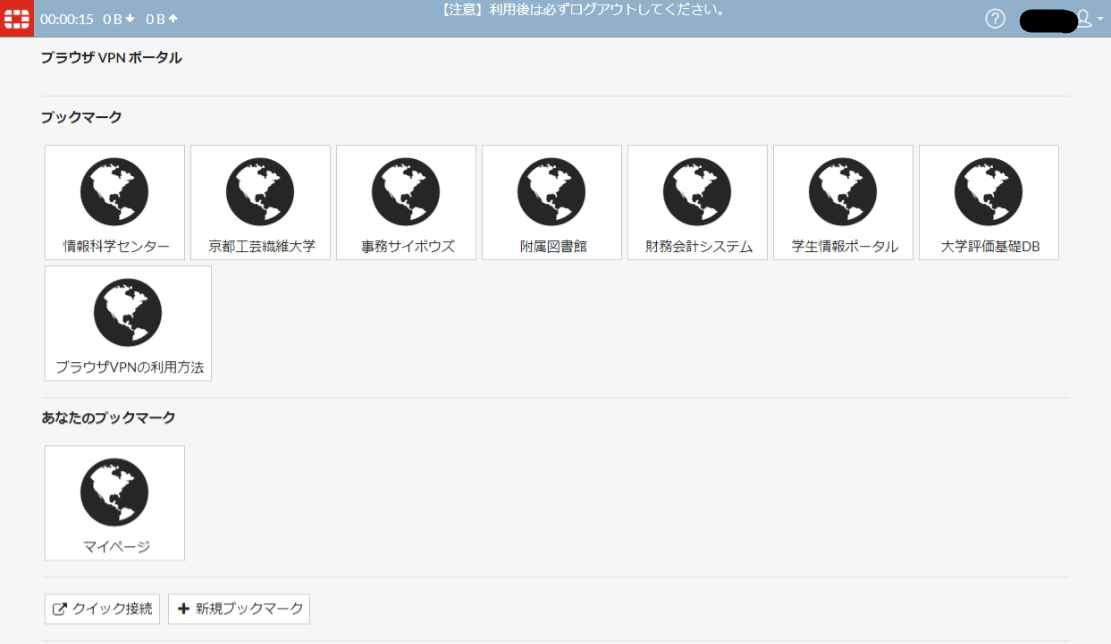
- When you successfully log in, the portal page of the browser VPN will be displayed.
 Image Removed Image Removed Image Added Image Added
| 注意 |
|---|
- Even if you bookmark a website accessed via the Web Browser-based VPN, you won’t be able to access it later. Please follow the procedure for adding bookmarks for your personal use to register bookmarks in the Web Browser-based VPN.
- Always log out after use. This is to prevent misuse by others impersonating you.
- If no communication occurs for 30 minutes, you will be automatically logged out. If you wish to continue using it, you will need to log in again.
|
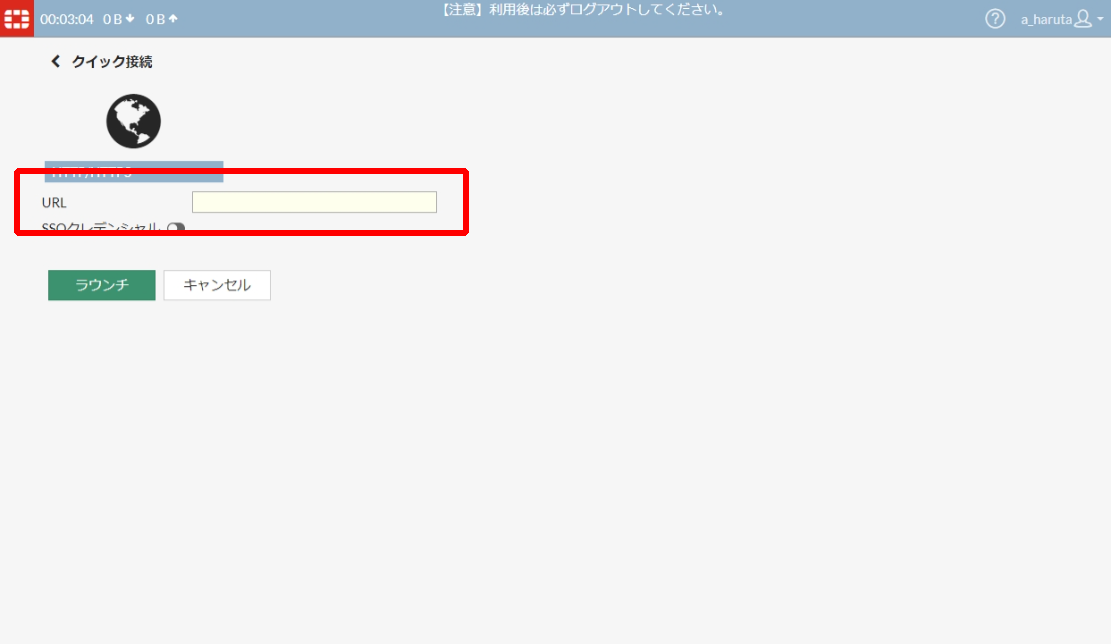
How to access to an URL via the Web Browser-based VPNClick on “Quick Connection”, which is located at the bottom left of the portal page screen.
 Image RemovedEnter the URL of the site you want to connect to in "URL" field. Image RemovedEnter the URL of the site you want to connect to in "URL" field.
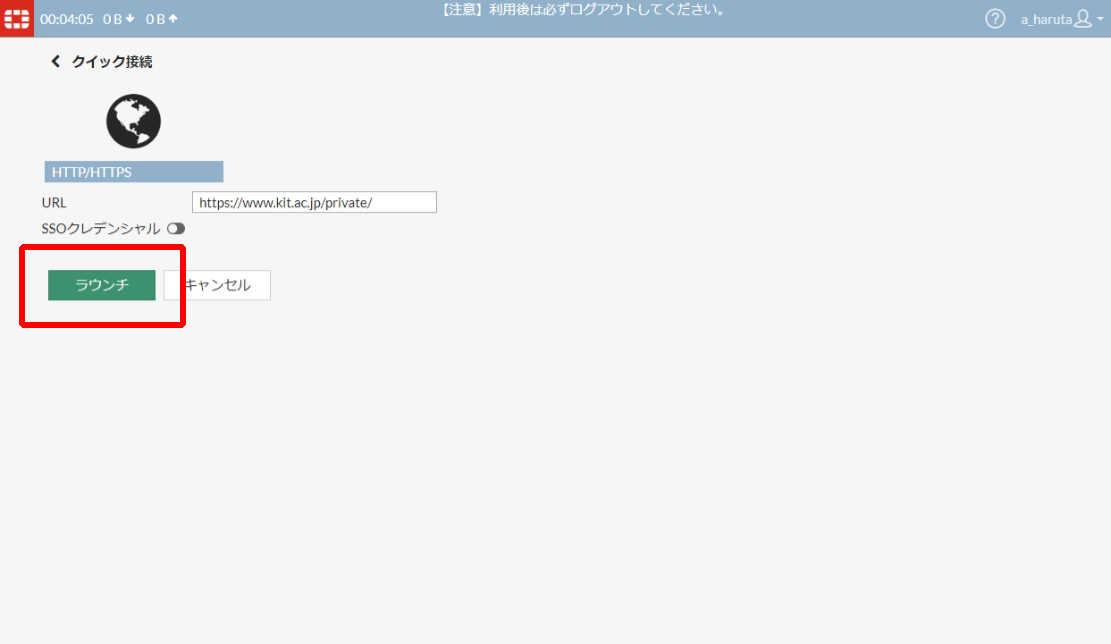
 Image RemovedClick "Launch" button. Image RemovedClick "Launch" button.Image Added
| 注意 |
|---|
Only URLs starting with http:// or https:// are accessible. |
| 注意 |
|---|
Attempts to access certain services (such as Web mail, Help Desk, etc.) will be blocked. Please access these services directly. |
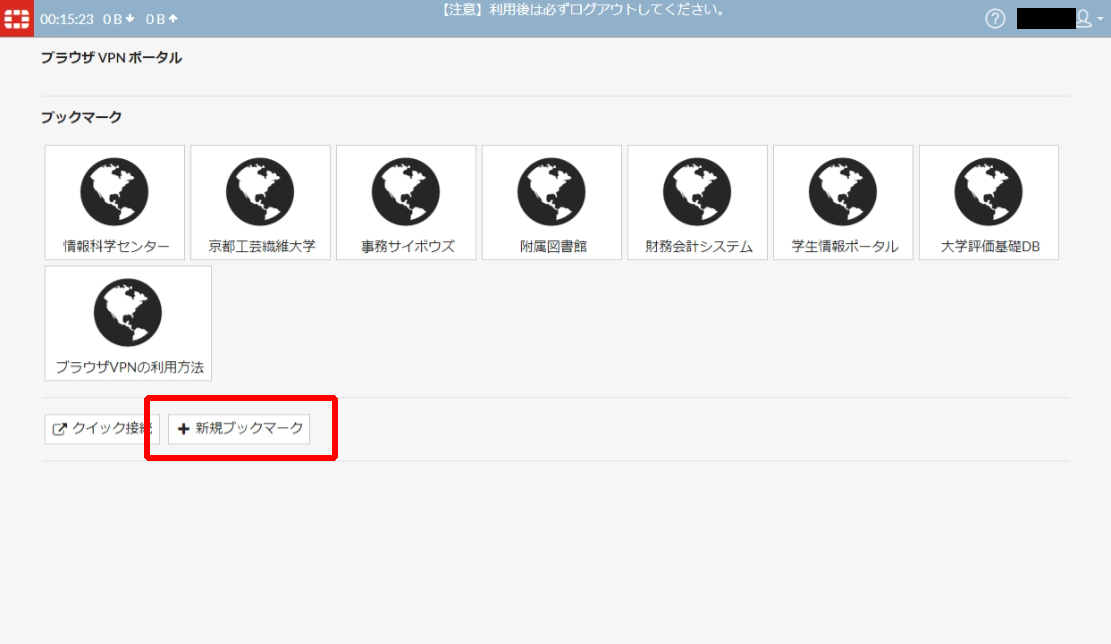
How to register an URL to your personal bookmarksYou can add frequently accessed URLs to the personal bookmarks of your Web Browser-based VPN. - Click "New Bookmark" button.
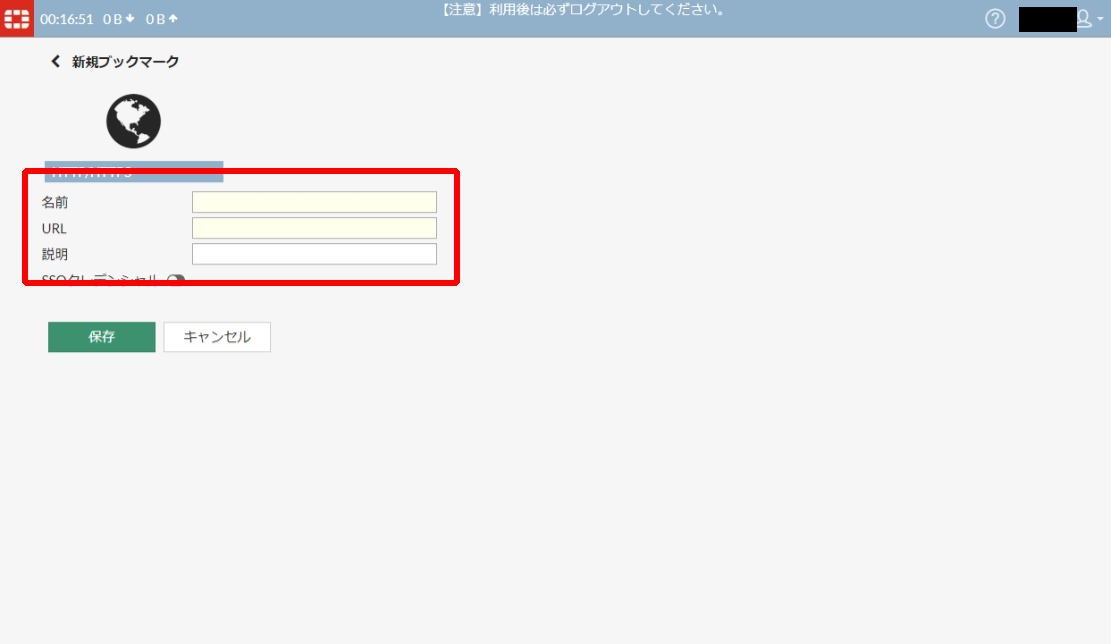
 Image Removed Image Removed Image Added Image Added - Enter the name of the bookmark in the “Name” field, the URL you want to bookmark in the “URL” field, and a description of the bookmark in the “Description” field (optional).
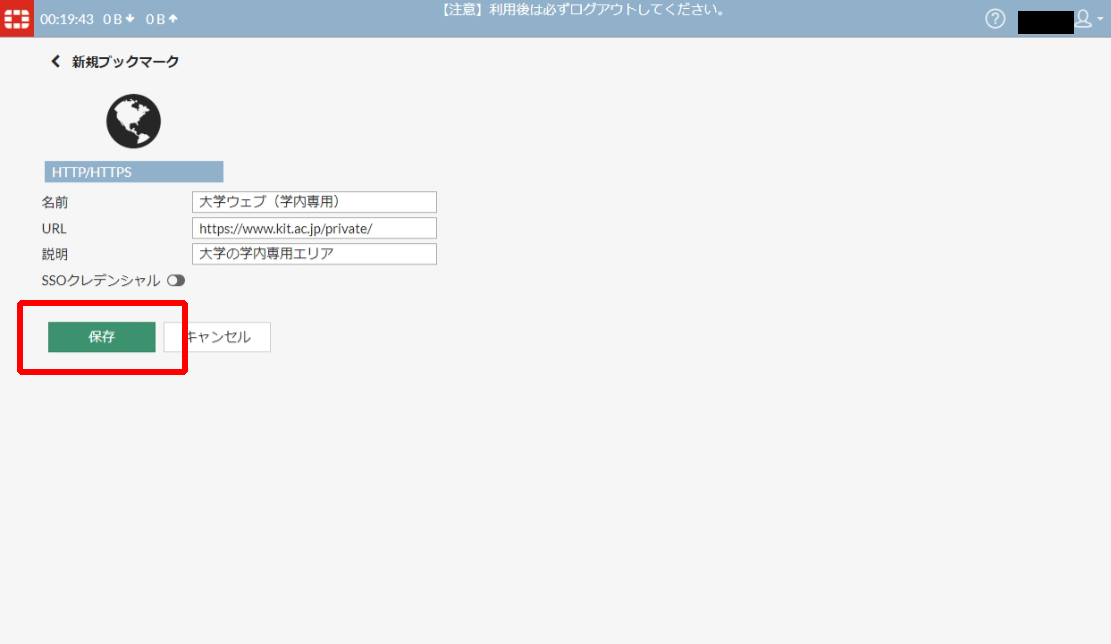
 Image Removed Image Removed Image Added Image Added - Click "SaveOK" button.
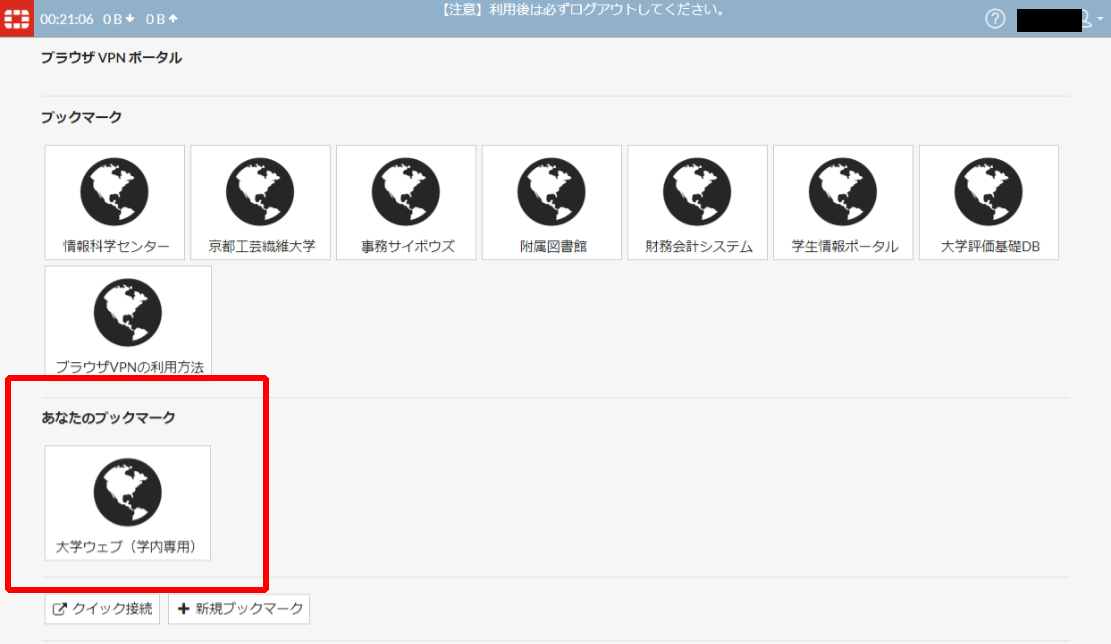
 Image Added Image Added - The new bookmark will be displayed on the "Your Bookmarks" section.
 Image Removed. Image Removed.
 Image Added Image Added
Log out of the serviceWhen you’ve finished using a task that requires a VPN connection, make sure to log out. This helps prevent third parties from spoofing your identity. - Click your login name in the upper-right corner of the page.
 Image Added Image Added - Click Logout.
 Image Added Image Added
Related articles| ラベル別コンテンツ |
|---|
| showLabels | false |
|---|
| max | 5 |
|---|
| spaces | CISSUPPORT |
|---|
| showSpace | false |
|---|
| sort | modified |
|---|
| reverse | true |
|---|
| type | page |
|---|
| cql | label in ("ブラウザvpn","fortigate") and type = "page" and space = currentSpace() |
|---|
| labels | kb-how-to-article |
|---|
|
|