Supported Operating Systems and Web BrowsersPlease refer to SSL VPN support | FortiGate / FortiOS 7.2.7 | Fortinet Document Library . | 警告 |
|---|
This feature is not available in Safari on macOS 15.x (Sequoia). Please use a different browser, such as Google Chrome or Mozilla Firefox. |
How to log in- Connect to https://vpns.cis.kit.ac.jp/ with a web browser.
You will see "Please login" page. Enter your login name and password for "Username" and "Password". Then, click "Login" button.
 Image Added Image Added | 情報 |
|---|
If you click Single Sign-On without entering any information, you will be logged in through the KIT Federation IdP. |
- When you successfully log in, the portal page of the browser VPN will be displayed.
 Image Added Image Added
| 注意 |
|---|
- Even if you bookmark a website accessed via the Web Browser-based VPN, you won’t be able to access it later. Please follow the procedure for adding bookmarks for your personal use to register bookmarks in the Web Browser-based VPN.
- Always log out after use. This is to prevent misuse by others impersonating you.
- If no communication occurs for 30 minutes, you will be automatically logged out. If you wish to continue using it, you will need to log in again.
|
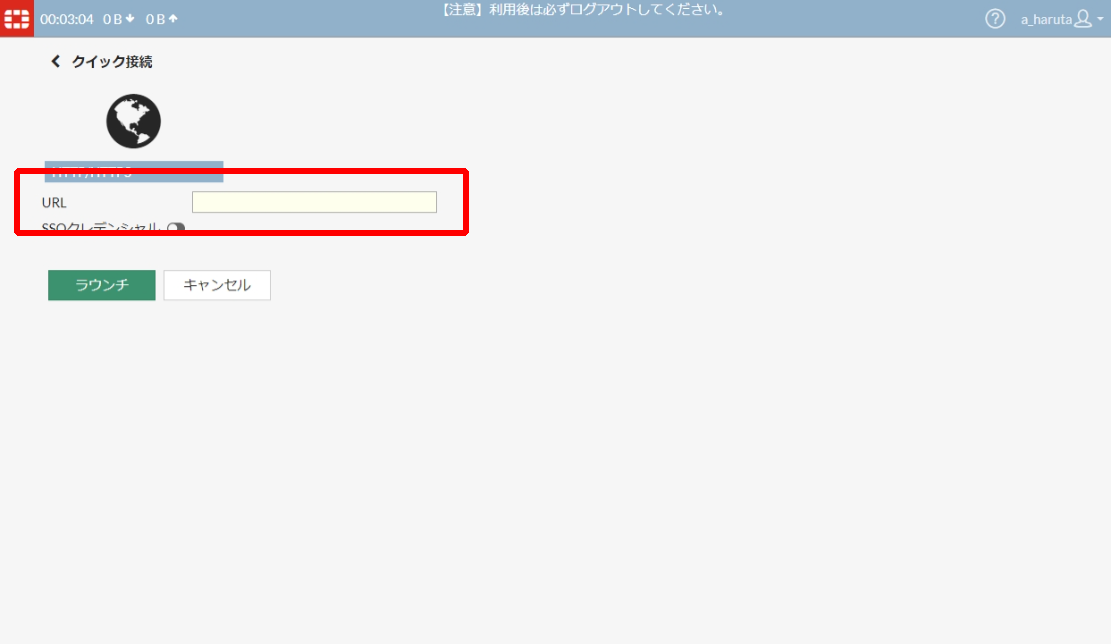
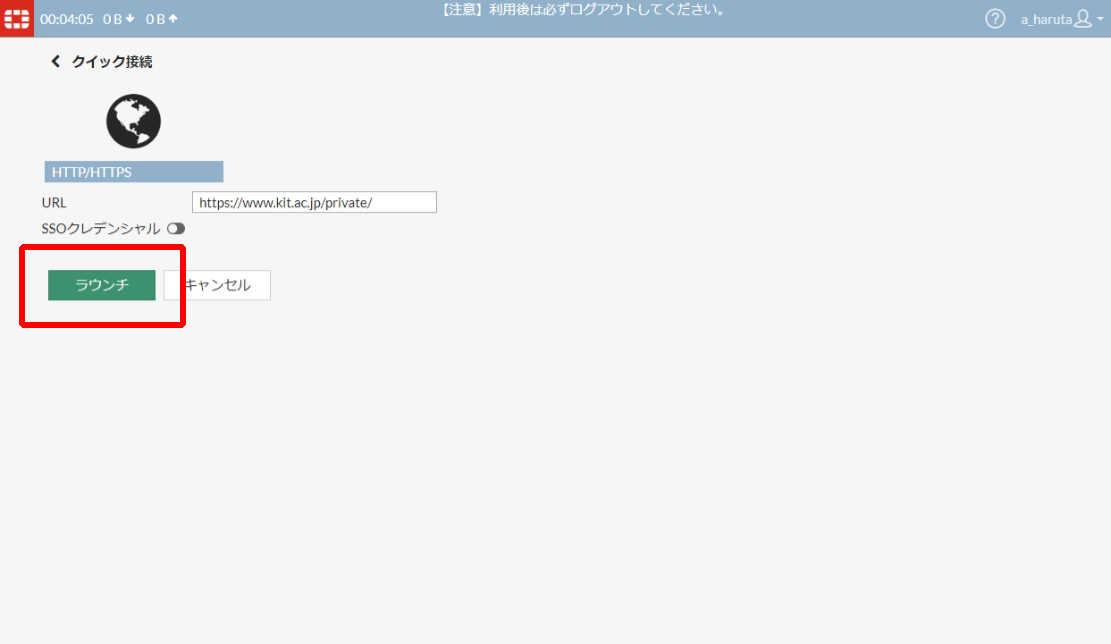
How to access to an URL via the Web Browser-based VPNClick on “Quick Connection”, which is located at the bottom left of the portal page screen.
Image Added
| 注意 |
|---|
Only URLs starting with http:// or https:// are accessible. |
| 注意 |
|---|
Attempts to access certain services (such as Web mail, Help Desk, etc.) will be blocked. Please access these services directly. |
How to register an URL to your personal bookmarksYou can add frequently accessed URLs to the personal bookmarks of your Web Browser-based VPN. - Click "New Bookmark" button.
 Image Added Image Added - Enter the name of the bookmark in the “Name” field, the URL you want to bookmark in the “URL” field, and a description of the bookmark in the “Description” field (optional).
 Image Added Image Added - Click "OK" button.
 Image Added Image Added - The new bookmark will be displayed on the "Your Bookmarks" section.
 Image Added Image Added
Log out of the serviceWhen you’ve finished using a task that requires a VPN connection, make sure to log out. This helps prevent third parties from spoofing your identity. - Click your login name in the upper-right corner of the page.
 Image Added Image Added - Click Logout.
 Image Added Image Added
|