比較バージョン

キー

  • この行は追加されました。
  • この行は削除されました。
  • 書式設定が変更されました。
Sv translation
languageja

目次

サポートしているオペレーティングシステムとウェブブラウザ

SSL VPN support | FortiGate / FortiOS 7.2.7 | Fortinet Document Library をご覧ください。

ログイン

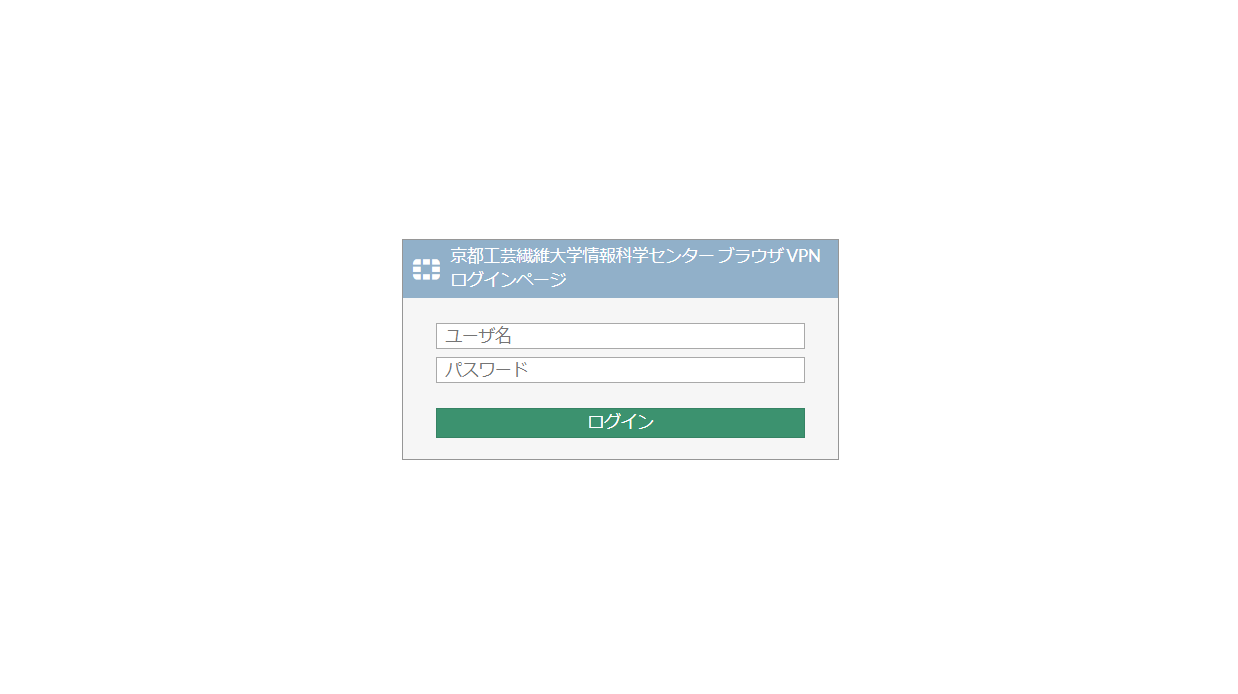
  1. Webブラウザで https://vpns.cis.kit.ac.jp/ に接続します。
  2. 「ログインしてください」画面が表示されますので、「Name」欄にCISアカウントのログイン名を、「Password」欄にCISアカウントのパスワードを入力し、「ログイン」ボタンを押します。
  3. Image Modified
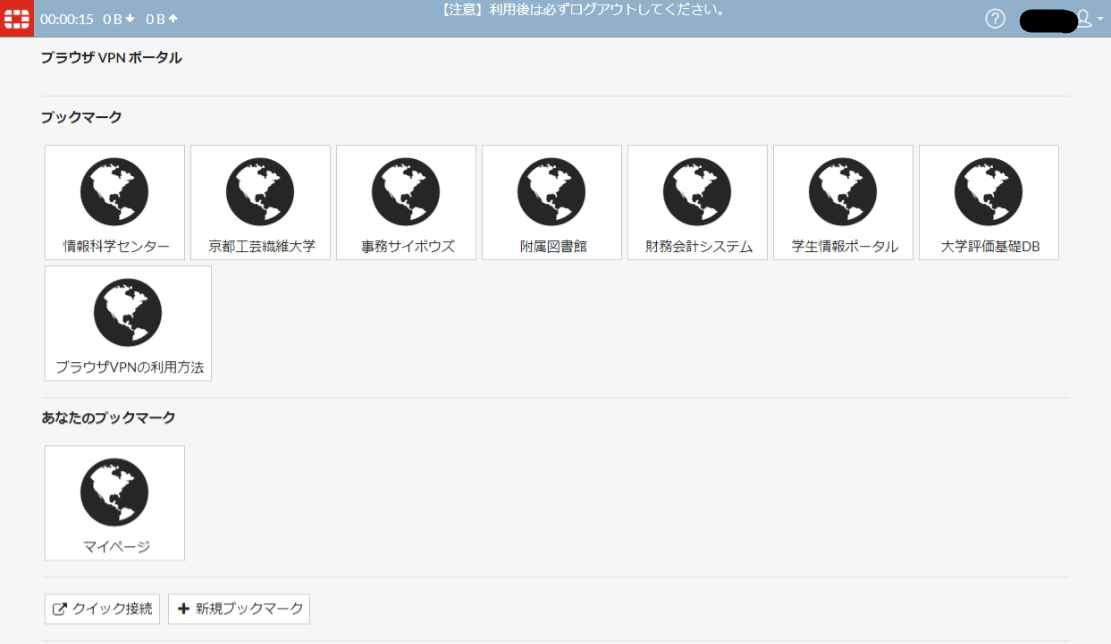
  4. ログインに成功すると、ブラウザ VPN の ポータルページが表示されます。
    Image Modified
注意
  • ブラウザVPNでアクセスしたウェブサイトをブラウザのブックマークに登録しても、後からアクセスはできません。
    URL を自分用ブックマークに登録する(後述)の手順でブラウザ VPN にブックマークを登録してください。
  • 利用後は必ずログアウトしてください。他者の「なりすまし」による悪用を防ぐためです。
  • 30 分間通信が行われなかった場合自動的にログアウトされます。利用を継続したいときは再度ログインする必要があります。

URL を指定してアクセスする

  1. ポータルサイトの画面左下、「クイック接続」をクリックします。
    Image Modified
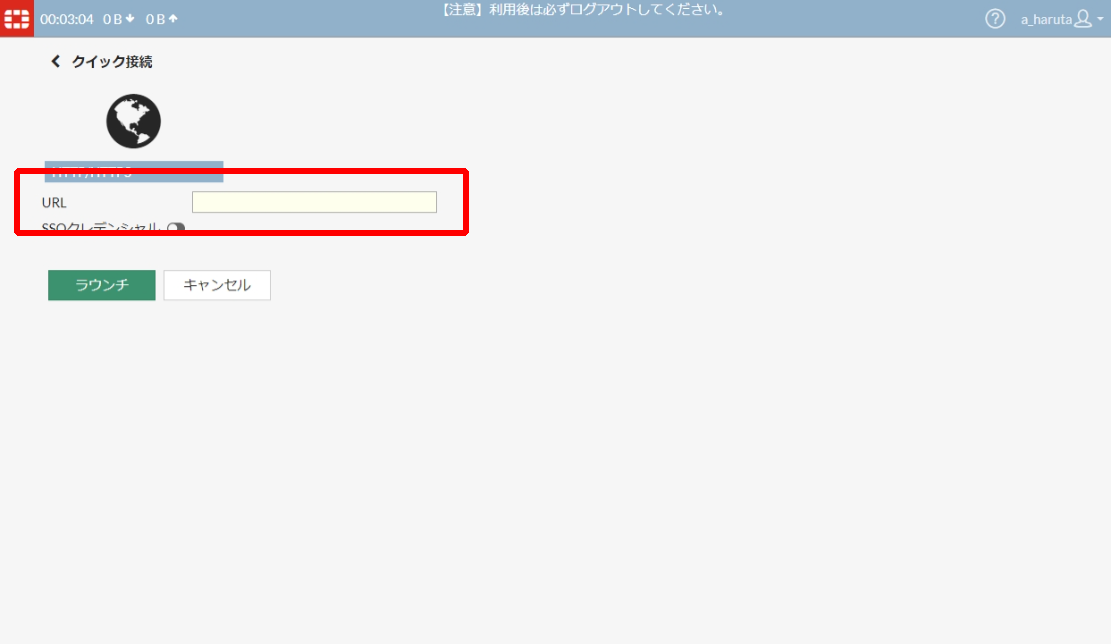
  2. URLの欄に接続したいサイトのURLを入力します。
    Image Modified
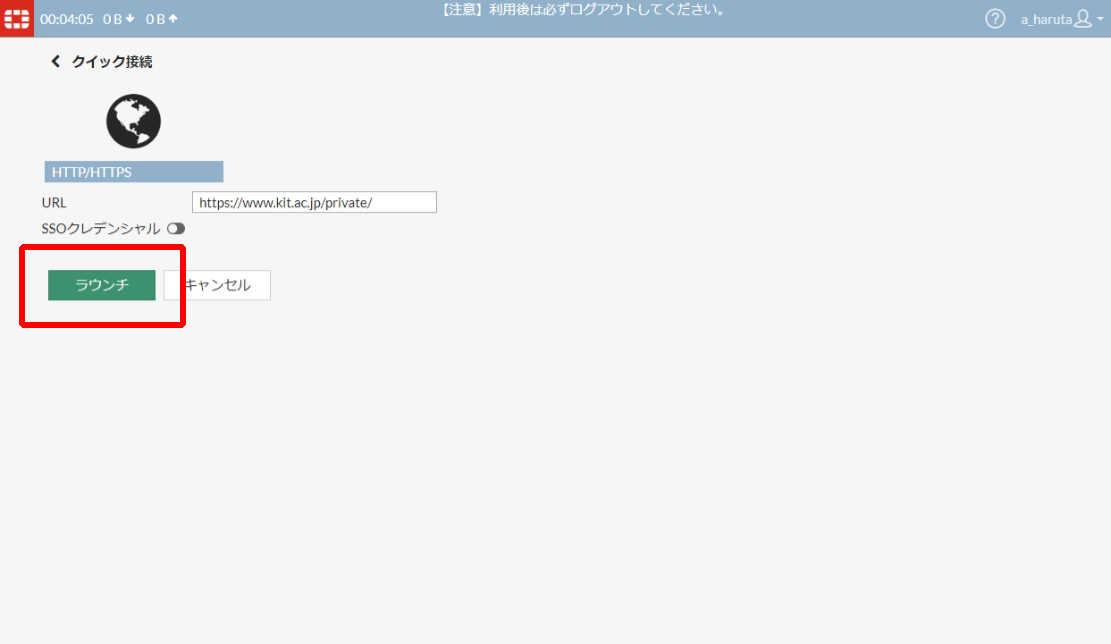
  3. 「ラウンチ」を押します。
    Image Modified


注意

http:// もしくは https:// から始まる URL のみアクセス可能です。


注意

Web メール、ヘルプデスクにアクセスしようとするとブロックされます。これらのサービスには、直接アクセスしてください。

URL を自分用ブックマークに登録する

よくアクセスする URL をブラウザ VPN の自分用ブックマークに登録することができます。

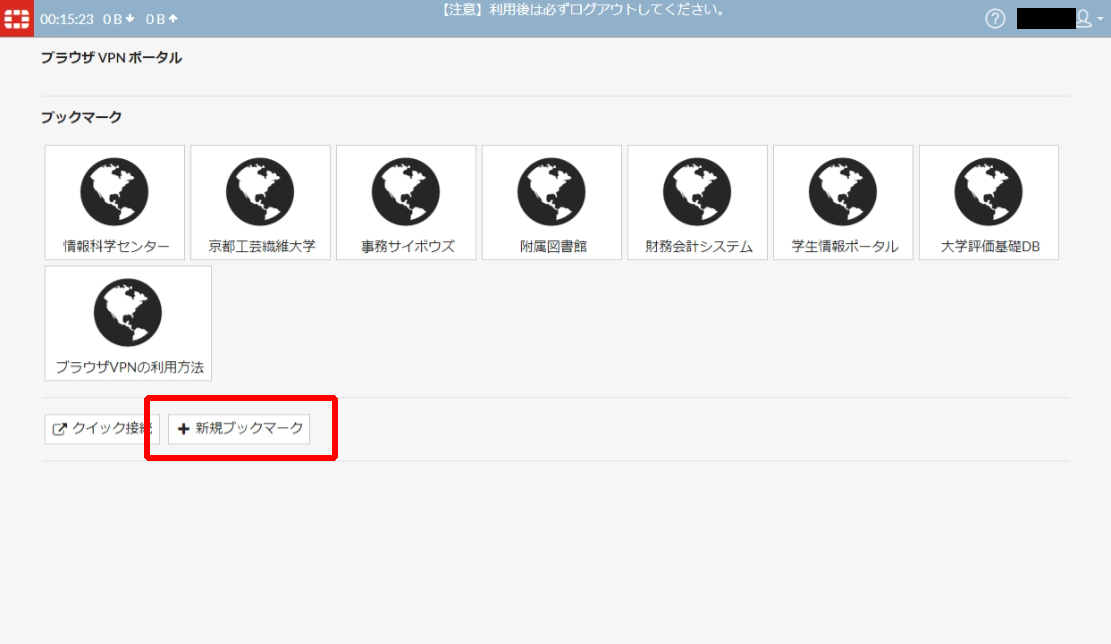
  1. 【新規ブックマーク】を押します。
    Image Modified
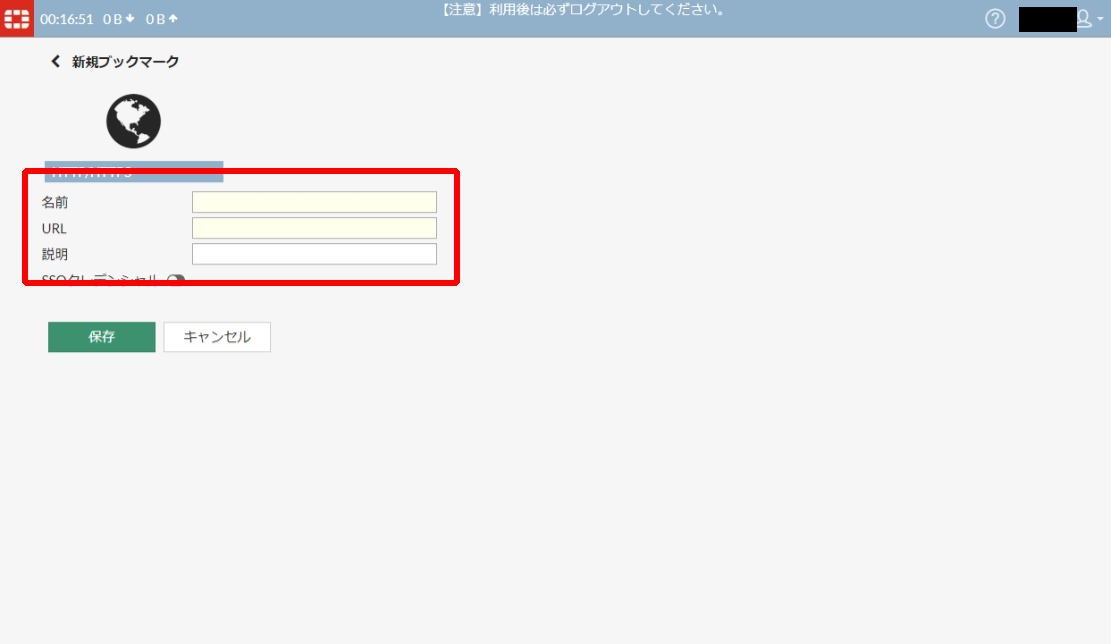
  2. 【名前】欄にブックマークの名前、【URL】にブックマークに登録したい URL、【説明】にブックマークの説明(任意)を入力します。
    Image Modified
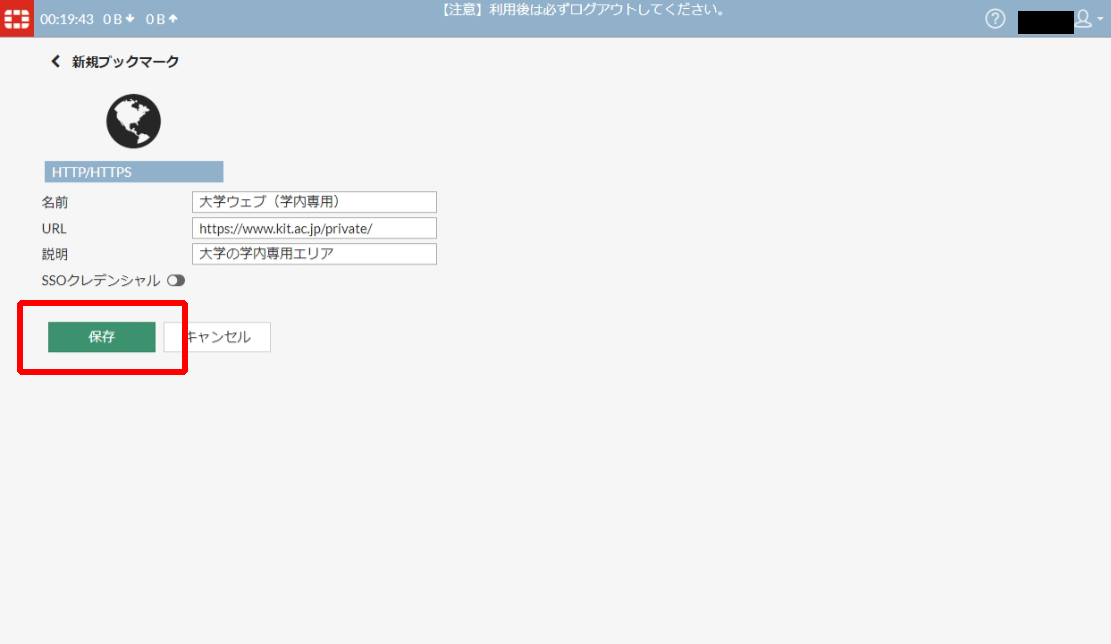
  3. 【保存】を押します。
    Image Modified
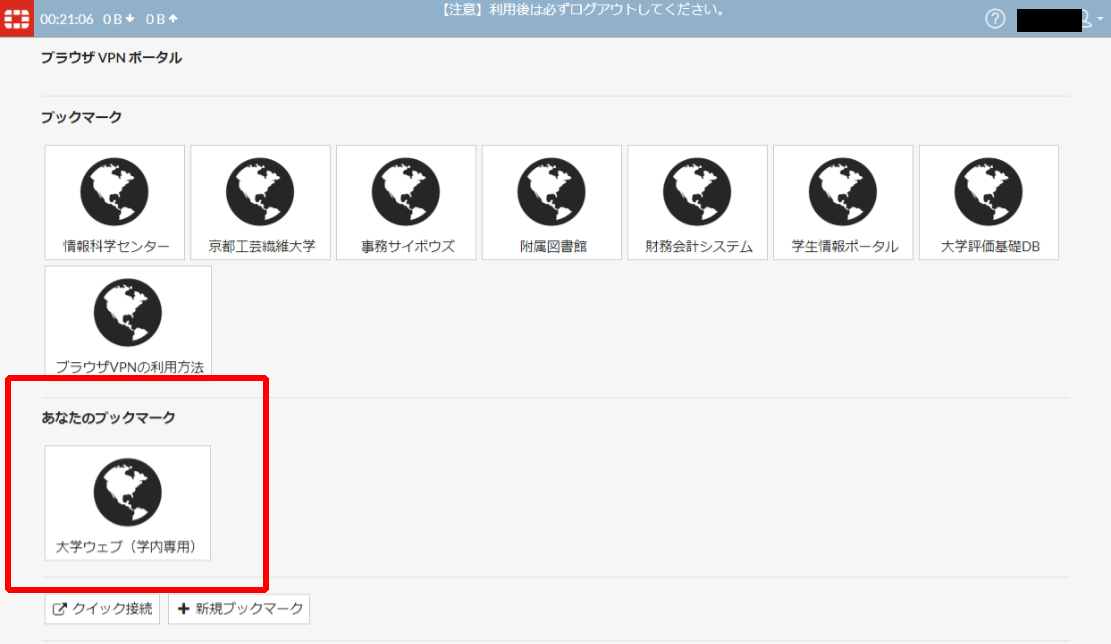
  4. 【あなたのブックマーク】にブックマークが登録されます。
    Image Modified


ラベル別コンテンツ
showLabelsfalse
max5
spacesCISSUPPORT
showSpacefalse
sortmodified
reversetrue
typepage
cqllabel in ("ブラウザvpn","fortigate") and type = "page" and space = currentSpace()
labelskb-how-to-article

ページ プロパティ
hiddentrue


Related issues


Sv translation
languageen

目次

Supported Operating Systems and Web Browsers

Please refer to SSL VPN support | FortiGate / FortiOS 7.2.7 | Fortinet Document Library.

How to log in

  1. Connect to https://vpns.cis.kit.ac.jp/ with a web browser.
  2. You will see "Please login" page. Enter your login name and password for "Username" and "Password". Then, click "Login" button.
    Image Added
  3. When you successfully log in, the portal page of the browser VPN will be displayed.
    Image Added
注意
  • Even if you bookmark a website accessed via the Web Browser-based VPN, you won’t be able to access it later. Please follow the procedure for adding bookmarks for your personal use to register bookmarks in the Web Browser-based VPN.
  • Always log out after use. This is to prevent misuse by others impersonating you.
  • If no communication occurs for 30 minutes, you will be automatically logged out. If you wish to continue using it, you will need to log in again.

How to access to an URL via the Web Browser-based VPN

  1. Click on “Quick Connection”, which is located at the bottom left of the portal page screen.
    Image Added
  2. Enter the URL of the site you want to connect to in "URL" field.
    Image Added
  3. Click "Launch" button.

注意

Only URLs starting with http:// or https:// are accessible.


注意

Attempts to access certain services (such as Web mail, Help Desk, etc.) will be blocked. Please access these services directly.

How to register an URL to your personal bookmarks

You can add frequently accessed URLs to the personal bookmarks of your Web Browser-based VPN.

  1. Click "New Bookmark" button.
    Image Added
  2. Enter the name of the bookmark in the “Name” field, the URL you want to bookmark in the “URL” field, and a description of the bookmark in the “Description” field (optional).
    Image Added
  3. Click "Save" button.

  4. The new bookmark will be displayed on the "Your Bookmarks" section.
    Image Added


Related articles

ラベル別コンテンツ
showLabelsfalse
max5
spacesCISSUPPORT
showSpacefalse
sortmodified
reversetrue
typepage
cqllabel in ("ブラウザvpn","fortigate") and type = "page" and space = currentSpace()
labelskb-how-to-article

ページ プロパティ
hiddentrue


Related issues