| 警告 |
|---|
You cannot use your KIT email address in the new version of Outlook. |
This guide explains how to set up your university email address in Outlook (classic) within Microsoft 365 Apps for Enterprise. - Launch Outlook (Classic).
- If you are already using a different email address, click File > Add Account.
- In the email address field, enter your university email address.
(Note: Do not use the phrase "also known as your email address.")
Click Connect.
 Image Added Image Added - Select IMAP Account Type.
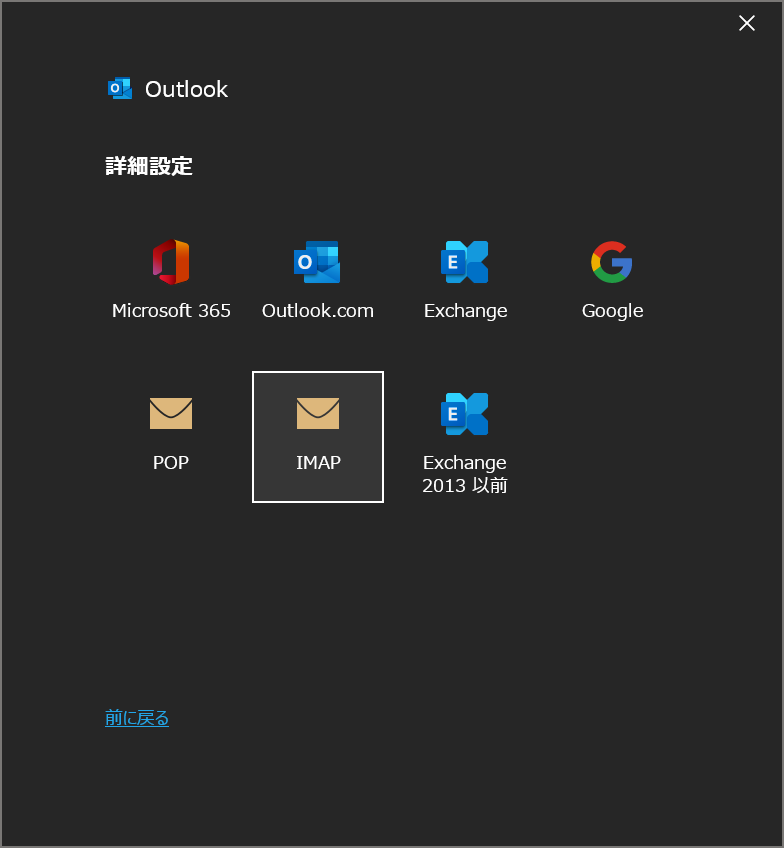 Image Added Image Added Enter the following details: | パネル |
|---|
| title | Incoming Mail Settings: |
|---|
|
| Server: | imapmail.cis.kit.ac.jp |
|---|
| Port: | 993 |
|---|
| Encryption Method: | SSL/TLS |
|---|
| Require Secure Password Authentication (SPA) logon: | Leave this unchecked. |
|---|
|
| パネル |
|---|
| title | Outgoing Mail Settings: |
|---|
| | Server: | smtpmail.cis.kit.ac.jp |
|---|
| Port: | 465 |
|---|
| Encryption Method: | SSL/TLS |
|---|
| Require Secure Password Authentication (SPA) logon: | Leave this unchecked. |
|---|
|
 Image Added Image Added
Click Next.- Type your CIS account password and click Connect.
- Once the connection is successfully established, you will see the Account Added Successfully screen.
- Click Done to finish.
|