This section outlines the steps for implementing multi-factor authentication for web services. | 目次 |
|---|
| absoluteUrl | true |
|---|
| printable | false |
|---|
|
PrefaceSeveral web services offered by the CIS are accessible from locations outside the university. Refer to the following instructions for details. Unauthorized access attempts from outside, however, the university are possible. To mitigate the risk of unauthorized access due to leaked account information, such as through phishing emails, follow the recommended security measures outlined in this guide.
To prevent unauthorized access resulting from password leakage, System11 has implemented AXIOLE, an authentication server featuring a multi-factor authentication function.
When users activate the multi-factor authentication setting, the system will perform multi-factor authentication using a one-time password (OTP) when logging in to a web service that supports this security feature from off-campus.
While System11 has implemented the multi-factor authentication function for university-wide email (MailSuite), it's important to note that the procedure outlined in this page does not apply, as it is specific to mail server products.
For instructions on setting up the multi-factor authentication feature for university-wide emails, please refer to the guide on 'Implementing Multi-Factor Authentication for Emails.
Web services where users can enable multi-factor authentication. 2023/6/26時点では、以下のWebサービスの学外からのアクセスについて多要素認証が利用可能です:As of June 26, 2023, multi-factor authentication is now available for accessing the following web services from off-campus: - File sharing and storage system(NextCloud)
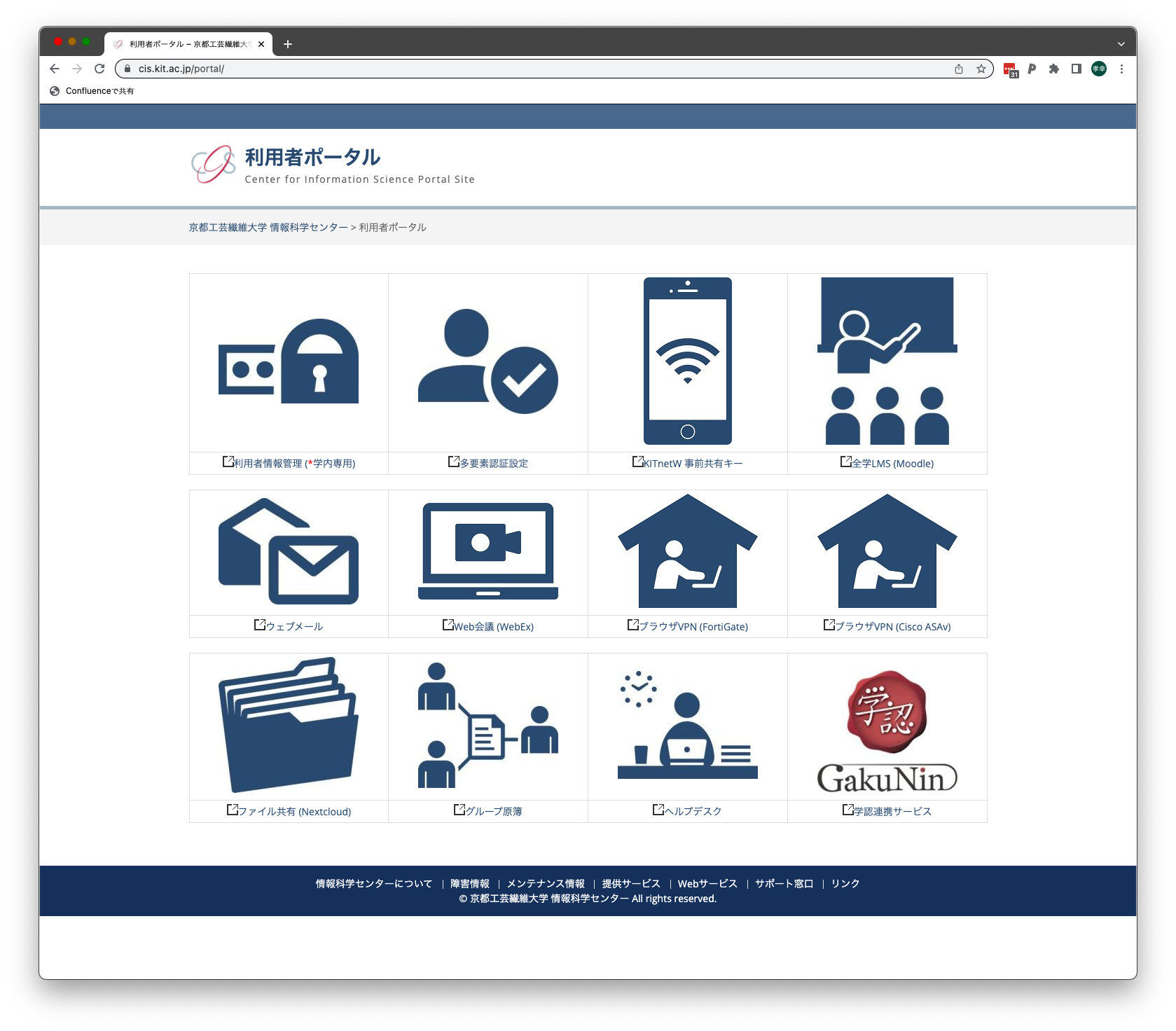
Step-Guide学内ネットワークから以下の設定作業を行うことで学外からのアクセスについて多要素認証を利用できるようになります。 「利用者情報管理サービス」上で多要素認証を有効にする- 利用者ポータル(https://cis.kit.ac.jp/portal/)にある「利用者情報管理」にアクセス
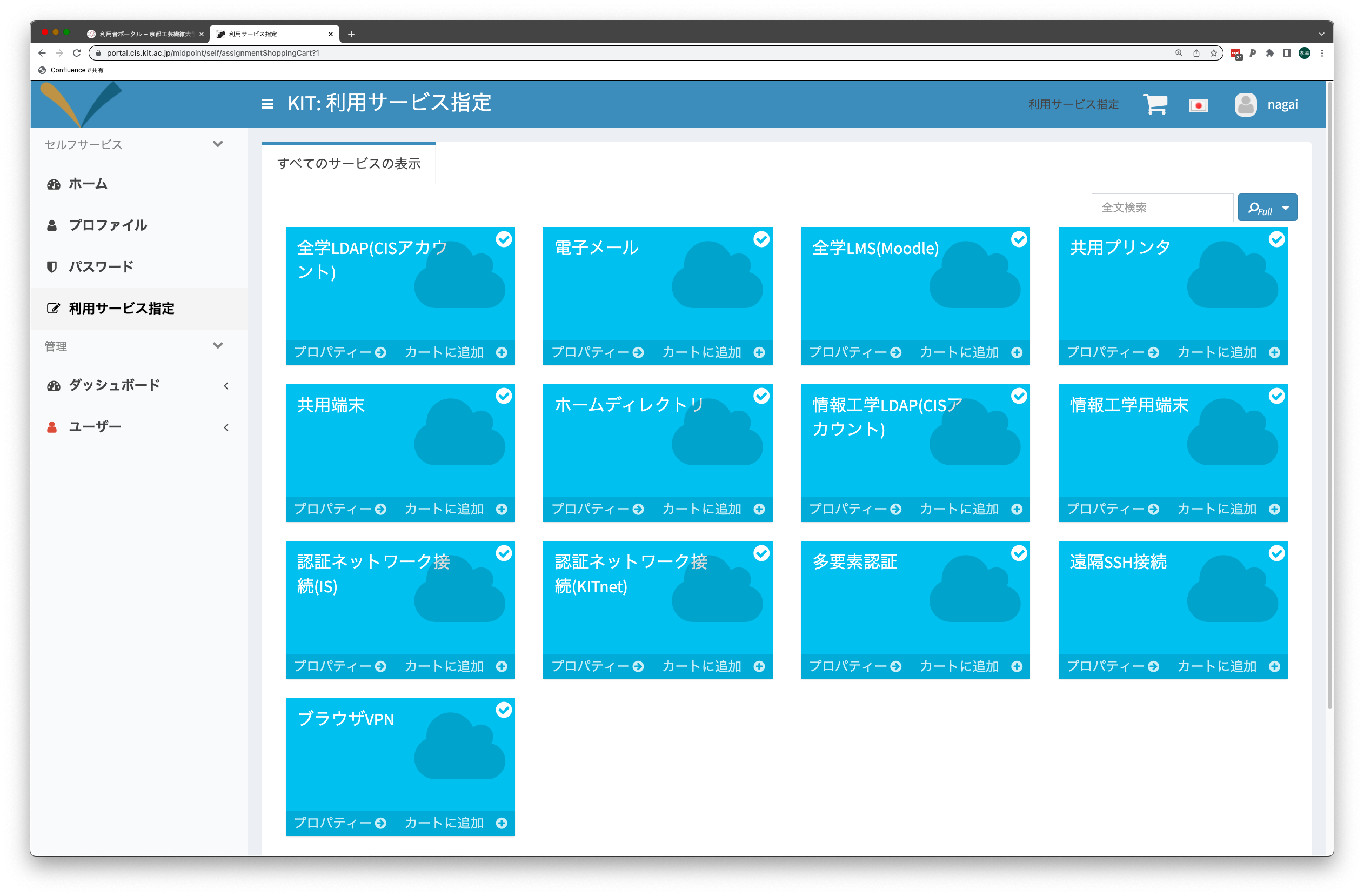
 - 「利用者情報管理」サービスの「利用サービス指定」画面で「多要素認証」を有効にする:
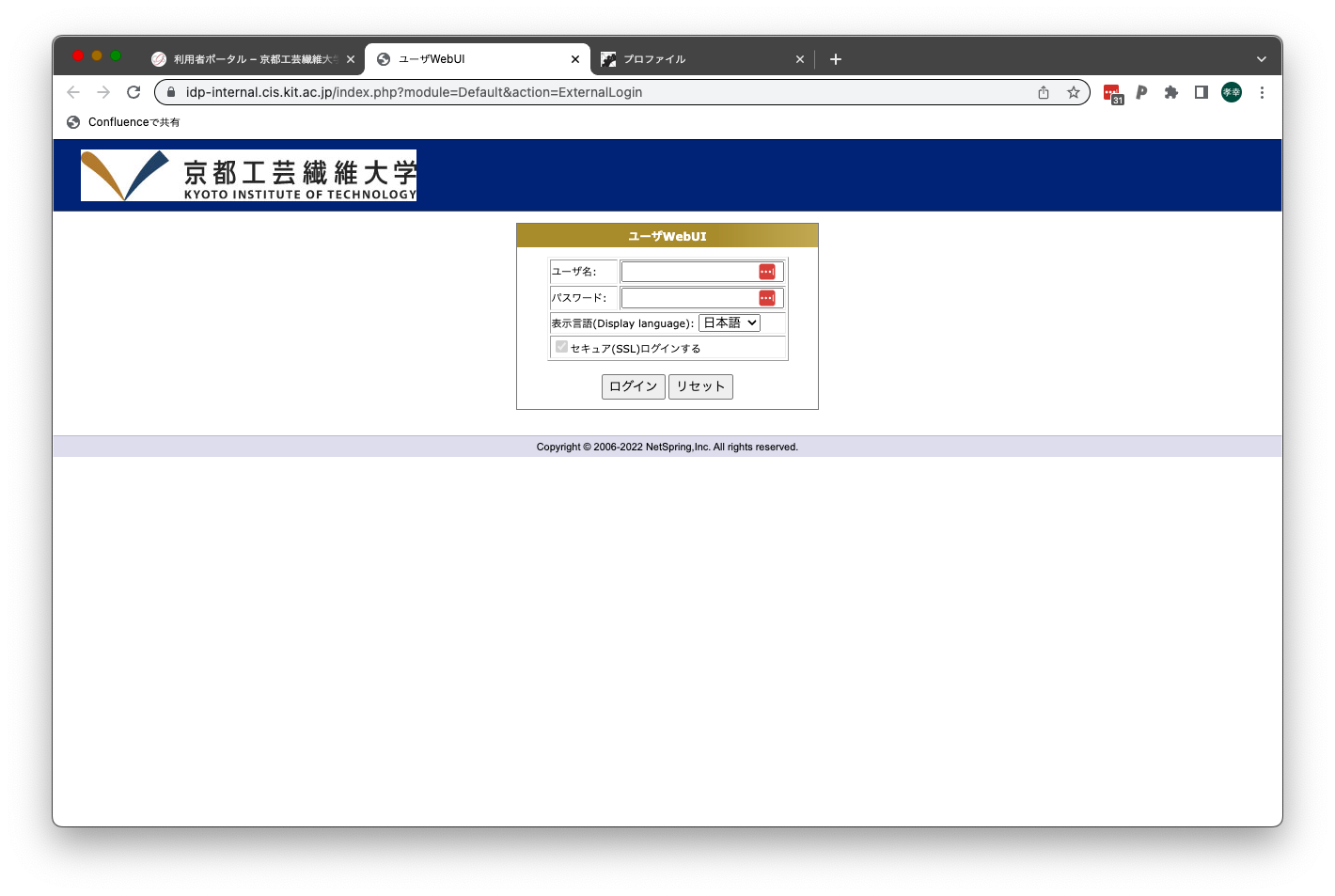
「多要素認証設定サービス」上で多要素認証アプリの設定をする- 利用者ポータル(https://cis.kit.ac.jp/portal/)にある「多要素認証設定」にアクセスし、情報科学センターアカウントでログインします。
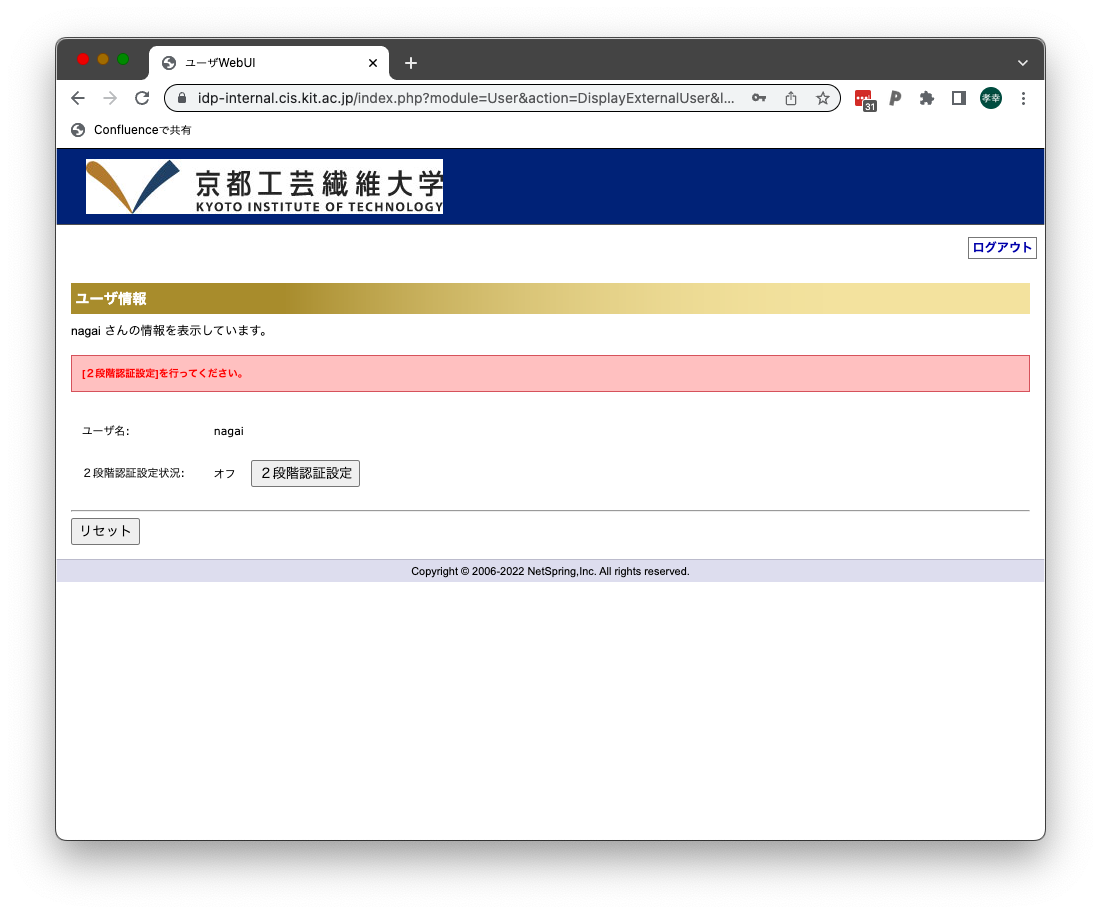
- ログインしたら「2段階認証設定」ボタンをクリックします。
- 「2段階認証設定」の画面が表示されたら、「トークンアプリを使用する」を選択します。次に、スマートフォンのトークンアプリで画面上のQRコードを読み込み、ワンタイムパスワード情報を登録します。
トークンアプリにはTOTP方式に対応したワンタイムパスワード管理用アプリケーション(Google Authenticator, Microsoft Authenticator等)が利用可能です(iPhone/iPad標準のパスワード管理アプリも利用可能です。
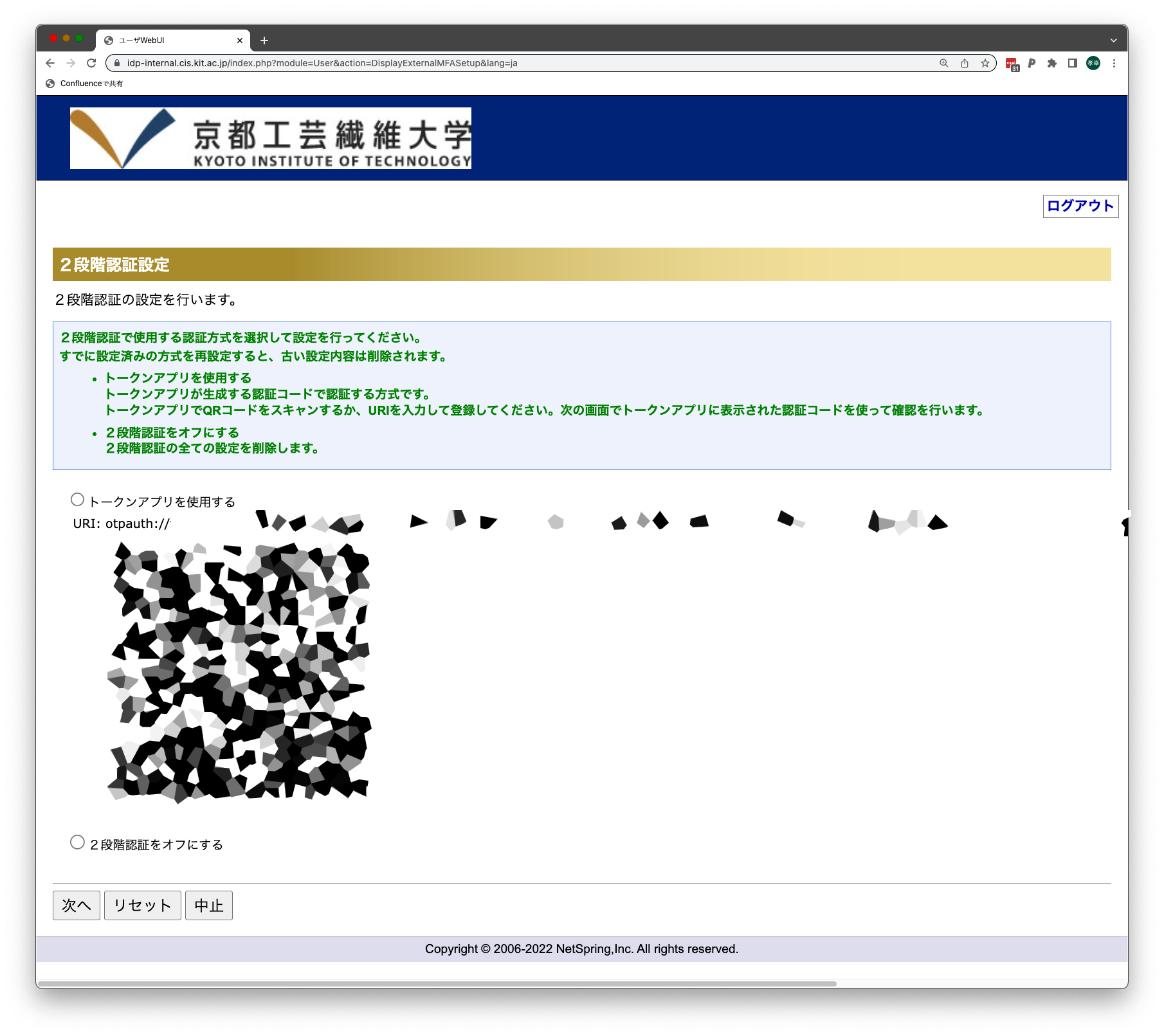
トークンアプリの設定が済んだら「次へ」ボタンをクリックします。
- トークンアプリの設定が正常に行えたかを確認するために「認証コード」の入力を求められます。トークンアプリ上に表示されている認証コード(ワンタイムパスワード)を入力し、「確認」ボタンをクリックします。
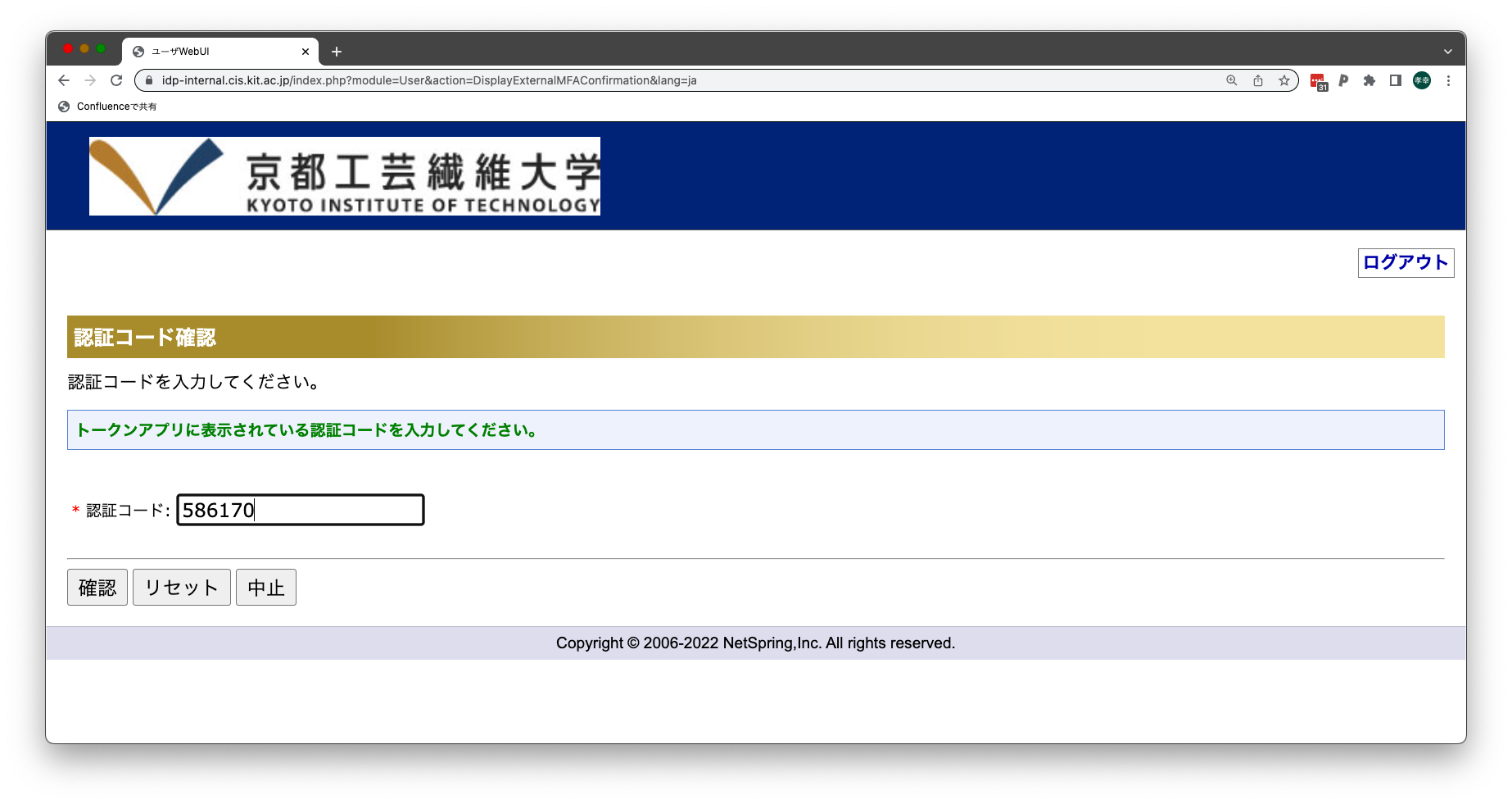 - 入力した認証コードが正しい場合は以下の画面が表示され、2段階認証設定状況が「オン」になります。
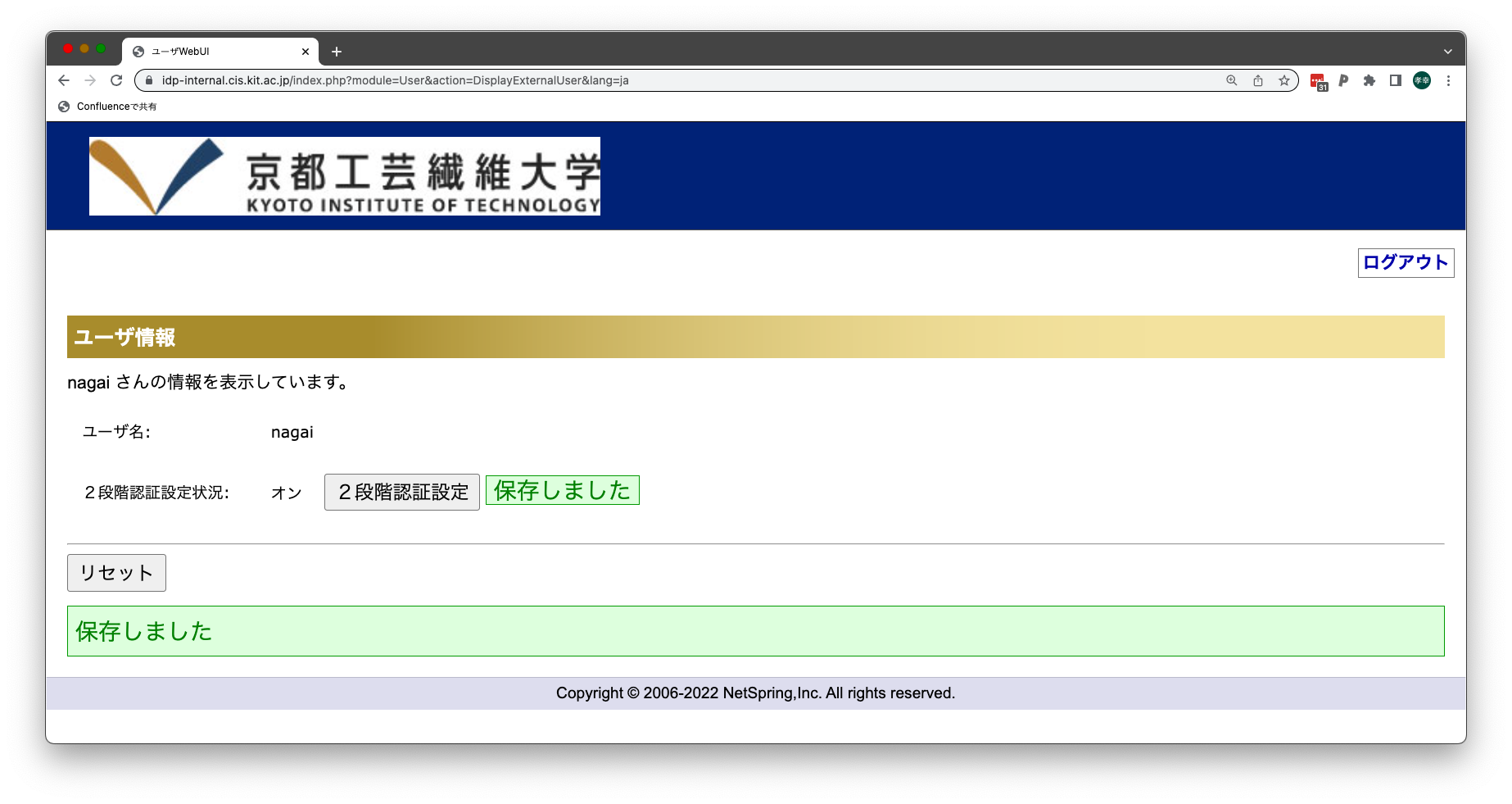
これで多要素認証を利用できるようになります 多要素認証対応Webサービスへのログイン手順- 多要素認証対応Webサービスへ学外からアクセスし、CISアカウントでログインします。
- 通常の認証に引き続き、次の「認証コード入力」画面が表示されます:
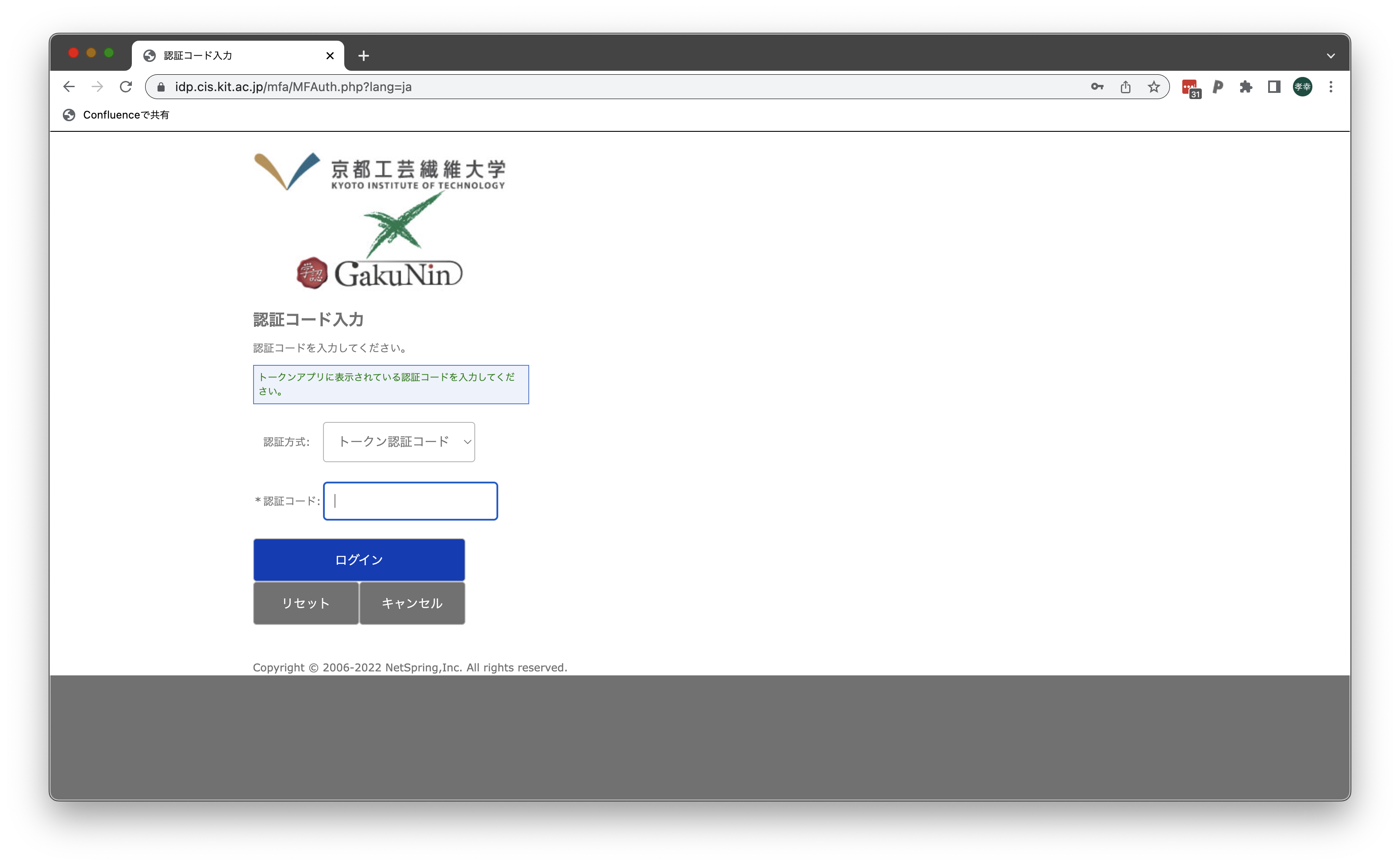 - トークンアプリに表示されている認証コード(ワンタイムパスワード)を入力し、「ログイン」ボタンをクリックしてください:
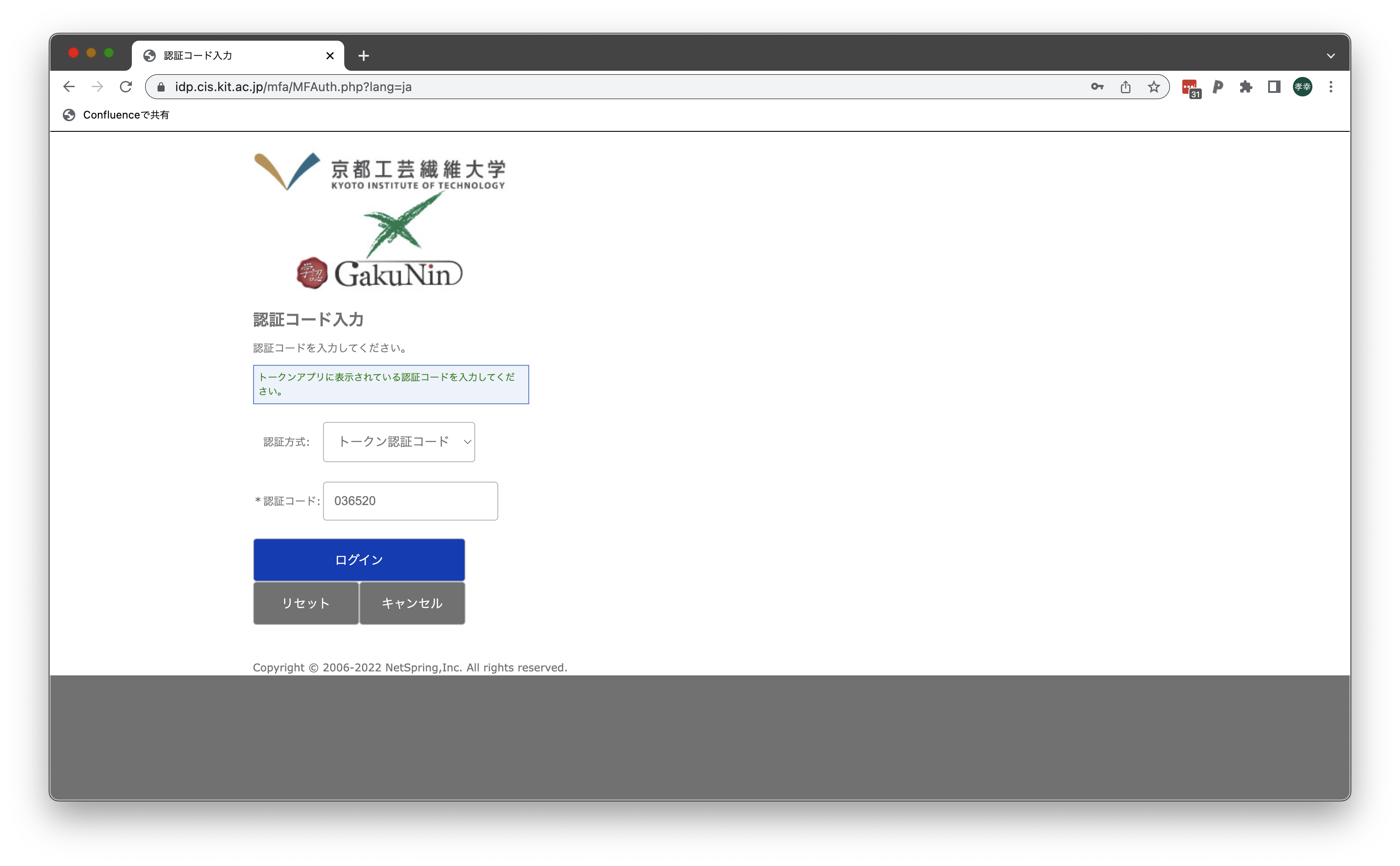
これで多要素認証を用いたログインが完了します。 | 情報 |
|---|
認証コードは一定時間おきに更新されるため、ログインボタンを押す直前に新しい認証コードに切り替わってしまい、ログインに失敗するケースがあります。 「認証コードが一致しません」というエラーが出た時は、最新の認証コードを入力しなおしてください。 |
Related articles| ラベル別コンテンツ |
|---|
| showLabels | false |
|---|
| max | 5 |
|---|
| spaces | CISSUPINT |
|---|
| showSpace | false |
|---|
| sort | modified |
|---|
| reverse | true |
|---|
| type | page |
|---|
| cql | label in ("多要素認証","mfa") and type = "page" and space = currentSpace() |
|---|
| labels | 仮想ウェブ |
|---|
|
|